Setting up Atoms
Written against Obsidian 1.12.7.
Three parts: install it, get capture onto your phone, wire it into Claude or ChatGPT. Installing takes two minutes. Only the phone shortcut is fiddly, and only once.
1 · Install
Atoms runs inside Obsidian, so Obsidian comes first. If you already use it, skip to step three — the menus are the same on a computer and a phone.
1. Get Obsidian
Download Obsidian. It is free, and your files stay on your device as plain text, not locked inside someone else's cloud.
2. Make a vault
A vault is a folder Obsidian watches. On first launch, choose Create new vault, name it, and pick where it lives. If Obsidian is already open, the vault switcher is at the bottom of the left sidebar.
A folder only becomes a vault when Obsidian is told to treat it as one.
3. Turn on community plugins
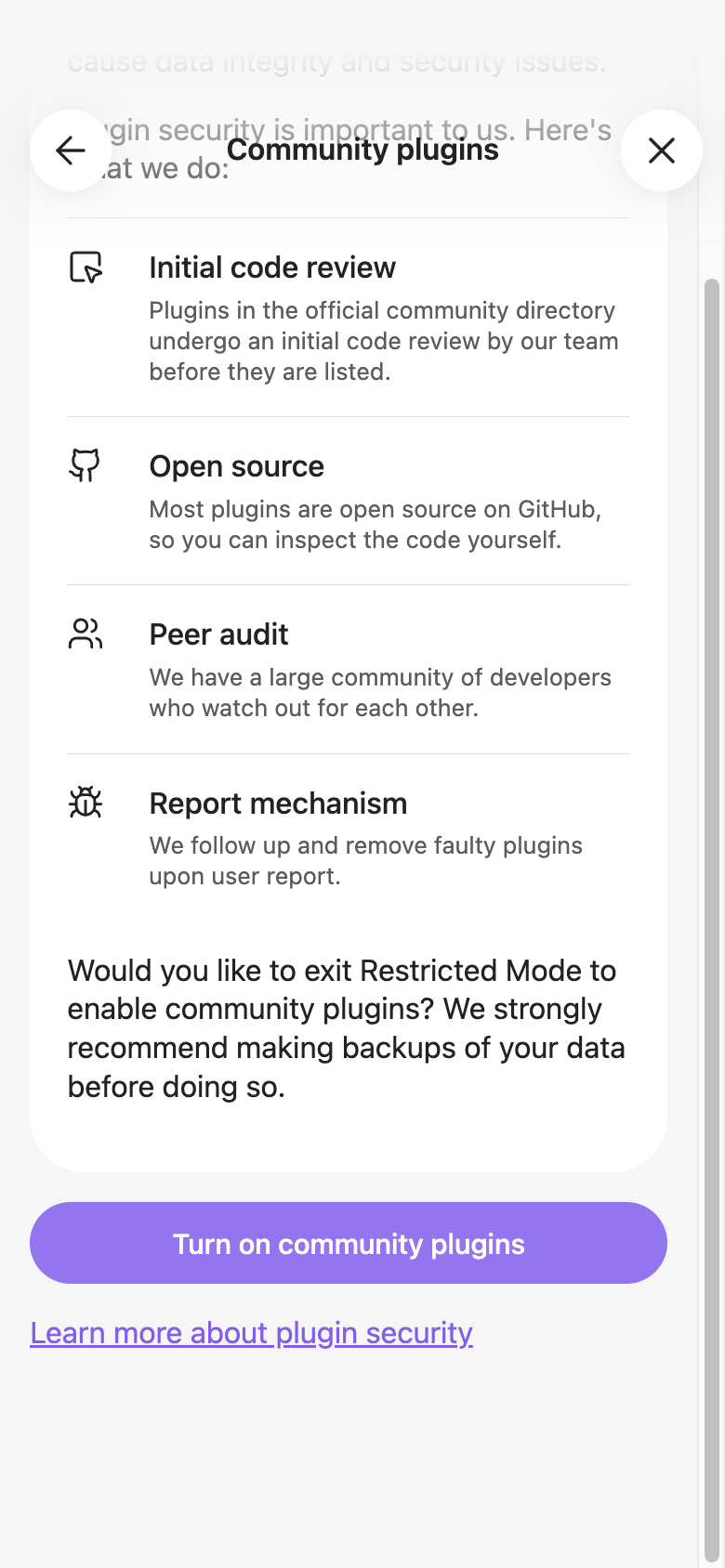
A new vault starts in Restricted Mode, which blocks every plugin — and does not make that obvious.
Open Settings (the gear, bottom left) → Community plugins. Past the security warnings there is one button: Turn on community plugins.
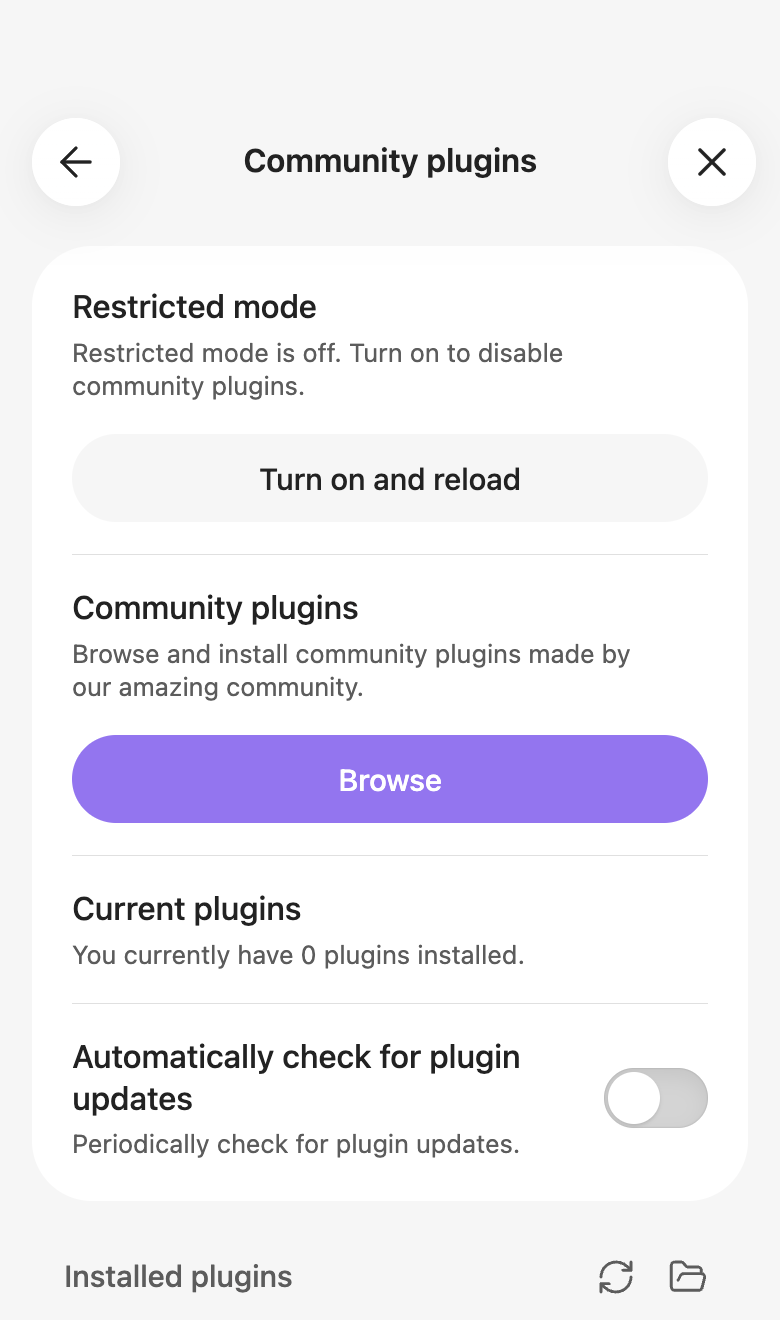
The pane changes once you do. Now it offers Browse.
Atoms also needs the core Daily Notes plugin. Settings → Core plugins → Daily Notes, if it is not already on.
4. Install Atoms
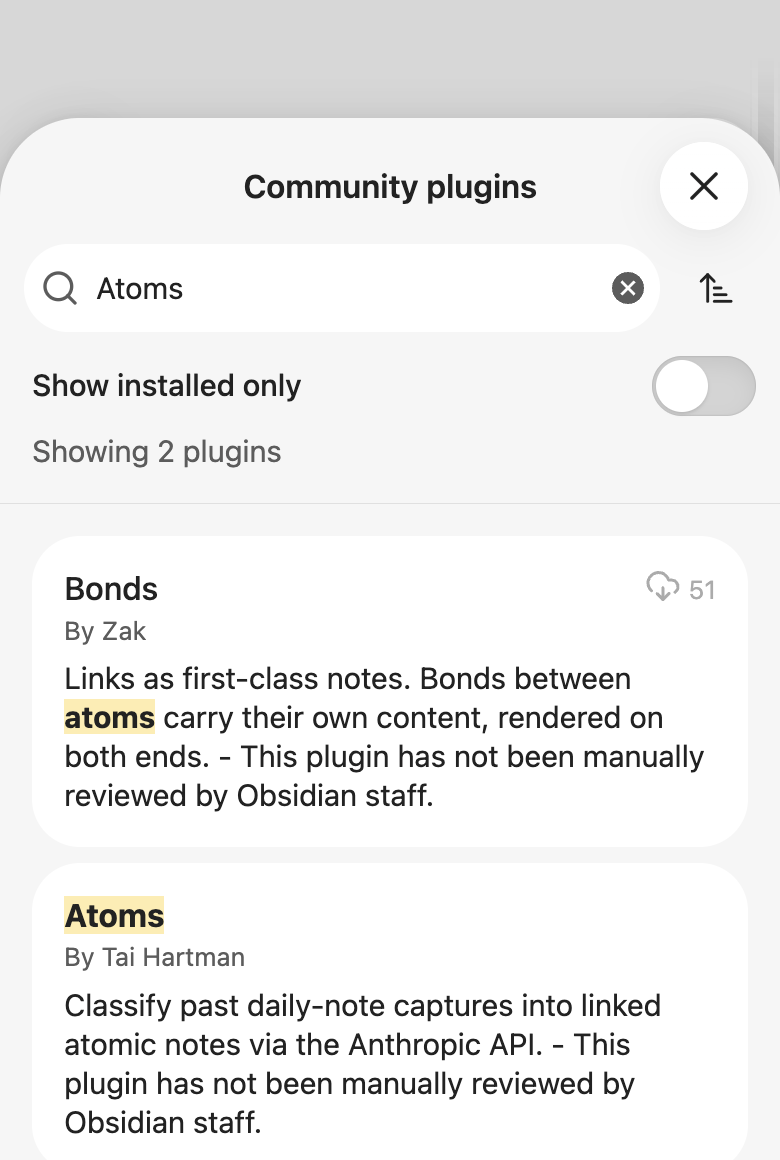
Hit Browse and search Atoms. Two results come back; take the one by Tai Hartman.
Press Install on its page, then Enable — the same button, twice. Installing does not switch it on.
Both results carry Obsidian's note that the plugin has not been manually reviewed. That is true of most of the directory.
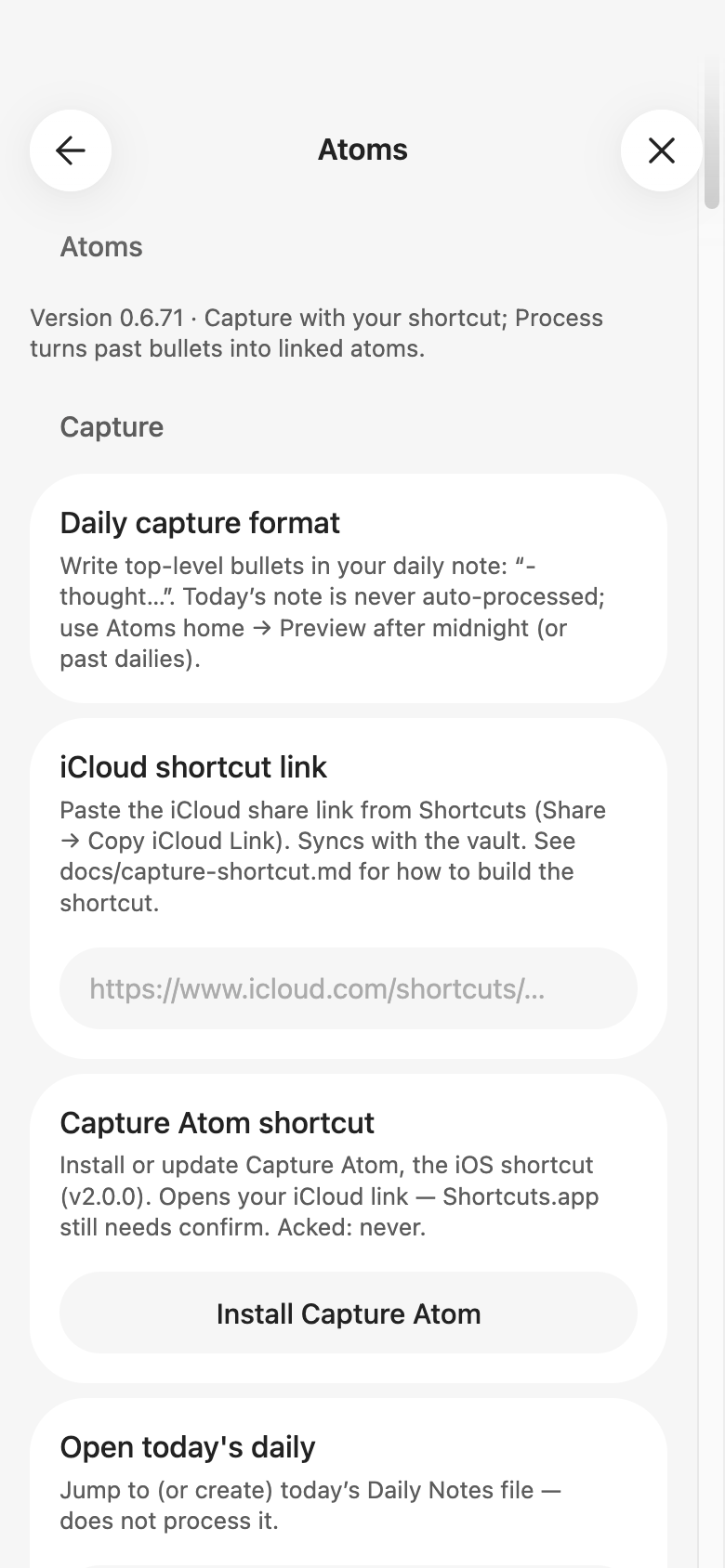
Then open Settings → Atoms. A version number at the top means it worked.
On that screen, tap Filing. That is where you start a trial and let us handle the key, or open Use your own Anthropic key and add your own. 14 days free, then $6/month. Cancel anytime. Card required for trial.
5. Open Atoms
Installing does not put Atoms in front of you, and the settings screen is not the product. On a computer, click the books icon in the left ribbon. On a phone there is no ribbon: open the left sidebar, then tap the view picker near the bottom and choose Atoms. If you are already in settings, the Atoms home row under 3 · Resurface opens it too.
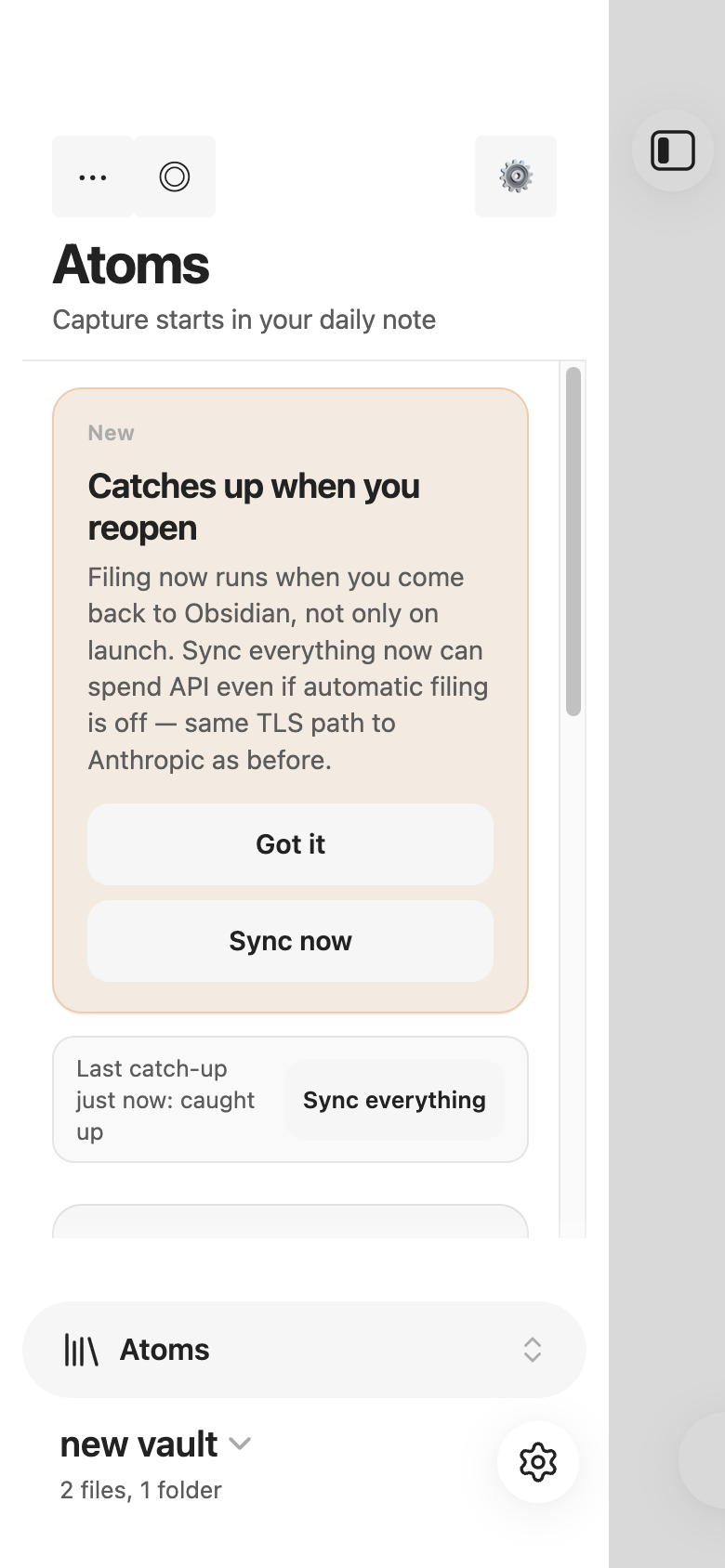
Both routes land on the same panel, and pressing twice is safe — it reuses the pane rather than opening another. The command palette (Ctrl/Cmd + P) has Atoms: Open home.
Staying up to date
Atoms ships often. Settings → Community plugins has Automatically check for plugin updates, plus a Check for updates button when you would rather not wait. The version in Settings → Atoms tells you which build you are on — worth a glance on your phone, where a stale copy is easy to miss.
2 · Capture
Atoms only sorts what you wrote down, so capture has to beat the thought. One line, no filing, no deciding — you dump it, and Atoms works out later what it was.
A capture is just a top-level bullet in your daily note: - ordered the wrong lens again. The phone Shortcut makes that fast enough to use while walking.
iPhone and iPad
In Obsidian, open Settings → Atoms → 1 · Capture → Capture on your phone, then press Install Capture Atom at the bottom of the three steps it shows you. Shortcuts asks you to confirm before adding it.
One more step on most phones. Open Obsidian once with Atoms on (so the Atoms Inbox bookmark exists). Then open Shortcuts → Capture Atom → edit (not just Run). Find Append to Bookmark, set the bookmark to Atoms Inbox (not Ask Each Time), and tap Done. Picking only while the shortcut is running does not stick. After that, capture should stop asking every time.
Then put Capture Atom somewhere you will actually reach: Control Center, the Home Screen, the Action Button, or a Back Tap under Settings → Accessibility → Touch → Back Tap. A capture you have to go looking for is a capture you will not make.
It asks whether to type or dictate, then writes one timestamped line into Atoms System/Inbox.md. Next time Obsidian opens, each line moves to the daily note for the date it was captured. Nothing is deleted, and captures survive a force-quit.
Building the Shortcut by hand
Only needed if the link fails, or you want to know what it does. Make a new shortcut named Capture Atom with these actions in order.
- Choose from Menu — two items, Type and Voice.
- Type branch: Ask for Input, prompt What's on your mind?, type Text.
- Type branch: Set Variable Capture to Provided Input.
- Voice branch: Dictate Text.
- Voice branch: Set Variable Capture to Dictated Text.
- Replace Text — find \n, replace with \n\t, Regular Expression on, input Capture.
- Format Date — Current Date, Date Format Custom, format string yyyy-MM-dd'T'HH:mm:ssZZZZZ.
- Text — - then the formatted date, a space, then the replaced text. All one line.
- Append to Bookmark (Obsidian) — bookmark Atoms Inbox, Append, text from step 8.
Two traps, both of which cost real time on device. Set the format string on the Format Date action, not by tapping the blue Current Date chip — the chip's panel looks like the right place and changes nothing. And use ZZZZZ, not Z: a single Z writes -0400 where the parser needs -04:00. If your timestamps all say 12:00:00, the date variable got set to Date only — clear it and re-insert without picking a component.
Android
Get Atoms Capture from Google Play. In Obsidian, open Settings → Atoms → 1 · Capture → Atoms Capture, then press Get Atoms Capture. That is the same listing.
Open the app and link this vault. Then capture from the overlay, the widget, or the shade tile. Each thought lands as a stamped line in Atoms System/Inbox.md. Next time Obsidian opens, Atoms files it into the daily note for that date, the same as the iPhone shortcut.
You can still type a top-level bullet in your daily note. Atoms treats it identically. The app is a convenience, not a requirement.
3 · Ask
People set this up last and then use it most. Ask Claude or ChatGPT about your own notes, and answers cite the atoms they came from.
It is off until you turn it on, and it only ever sends your atoms folder — not your daily notes, not the rest of your vault.
Turn on the mirror
In Settings → Atoms, switch on Ask mirror and accept the summary.
Add the connector
The same screen has a Connect Claude or ChatGPT row. Open it: the first row there is the MCP connector URL, with a Copy button — the same address for both assistants:
https://plus.tryatoms.app/mcp
- Claude — Customize → Connectors → + → Add custom connector, then paste the URL.
- ChatGPT web — In the current Plugins UI, go to Settings → Security → Developer mode and turn it on. On accounts that use Apps, go to Settings → Apps → Advanced Settings and turn on Developer mode. Then return to Plugins / Apps → Create app. Name it Atoms Plus, paste https://plus.tryatoms.app/mcp as the MCP server URL, keep OAuth, create it, then choose Sign in with Atoms Plus.
A successful ChatGPT sign-in returns to chatgpt.com. If it lands on 127.0.0.1 or localhost instead, close that tab and restart from ChatGPT web. Never use the localhost address as the MCP server URL.
Pair it
The sign-in page first asks for your Atoms Plus email. Open its one-time link in the same browser. If email is inconvenient, go back to Settings → Atoms → Connect Claude or ChatGPT, press Get pairing code, and use that instead.
Codes expire quickly and are secrets — treat one like a password.
What the mirror sends, and what the code does
Your atoms are copied to the Atoms Plus service so an assistant can search them. The copy goes one direction: nothing is ever written back over a note in your vault.
The pairing code binds the connector to your Atoms Plus account, which is why the email on your Claude or ChatGPT account does not need to match.
Then just ask
Ask the way you would ask someone who had read everything: what have I said about sleep this year, or what did I think last time I tried this. Answers cite their atoms, so you can open the note and read your own words in context.
There is also an optional Allow filing from Claude or ChatGPT switch. With it on, telling the assistant to remember something queues a new atom, which Obsidian writes into your vault on its next sync.
Run the server yourself
Advanced users who do not want hosted Plus can run plus-service on their own machine and point Settings → Advanced → Plus service URL at it. Claude and ChatGPT still need a public HTTPS address; localhost will not work. The steps are in the Self-host guide, which that screen also links.
What goes where, in full, is on the Privacy page.